Researcher Knowledge Workflows
How to Use Obsidian for Academic Research
Obsidian works for academic research because it stores plain markdown files you own forever and lets you link notes the way arguments actually connect — laterally, across topics, years before you know which chapter they belong in. The setup that follows is the minimum viable version: one vault, six folders, three plugins, and a naming scheme you can still parse in year four of a PhD.
The app itself is free for personal use, including academic work. You only pay if you want Obsidian’s own sync service ($4/month billed annually) or its publishing service — and there are free alternatives to both, covered below.
Why folder-based note apps fail once research gets serious
Every researcher starts with the same instinct: a folder per course, per project, per chapter. It works for about a semester. Then a paper on measurement error turns out to matter for both your methods chapter and a side project, a theory you filed under “background” becomes the spine of your argument, and you’re either duplicating notes or forgetting where things live.
The failure is structural. Folders force every note into exactly one location, decided at the moment you know least about how you’ll use it. Research doesn’t work that way — the value of a note usually emerges from a connection you couldn’t have predicted when you filed it. Apple Notes, standard OneNote setups, and a Documents folder full of Word files all share this flaw.
Links invert the problem. In Obsidian, typing [[ inside any note creates a link to any other note. A note on measurement error links from your methods chapter and your side project and the literature note on the paper that raised it. Location stops mattering; the graph of connections becomes the organization. This is the core idea behind the Zettelkasten method, but you don’t need to adopt the whole ideology to benefit — you just need to stop asking “which folder?” and start asking “which notes does this relate to?”
Folders don’t disappear entirely. They’re demoted to a coarse sorting function, which is what they’re actually good at.
A vault structure that survives a dissertation
One vault for everything. Splitting vaults by project kills cross-linking, which is the entire point. Inside it, this structure has held up across long projects:
thesis-vault/
├── 00-inbox/          Everything unprocessed lands here
├── 10-literature/     One note per source you've read
├── 20-notes/          Your own ideas — one claim per note
├── 30-projects/       Chapters, papers, talks, grant applications
├── 40-maps/           Maps of Content (see below)
├── 50-daily/          Daily notes: lab journal, reading log
└── 90-attachments/    Images, PDFs, exported figures
The number prefixes force a stable sort order and leave room to insert folders later without renaming everything. What matters is the division of labor: 10-literature holds what other people said, 20-notes holds what you think, and 30-projects holds documents with deadlines. Keeping those three separate is the single highest-value structural decision. When writing a chapter, you pull from 20-notes; when defending a claim in that chapter, the note links back to 10-literature; the citation trail stays intact from draft to source.
Naming conventions you can still parse in year four
- Literature notes:
firstauthor-year-slug.md— e.g.tversky-1979-prospect-theory.md. Sortable, unambiguous, matches how you cite. - Your own notes: the claim itself as the title —
retrieval practice outperforms rereading in delayed tests.md. A note titled “thoughts on memory” is unfindable and unlinkable; a note titled with its claim gets linked naturally mid-sentence while you write. - Project files:
ch3-methods.md,2026-cogsci-talk.md. Boring on purpose.
Avoid dates in filenames outside 50-daily, and avoid special characters — these are files on disk, and one day you will run a script over them.
The plugins that matter — and the ones that don’t
Obsidian’s community plugin catalog has thousands of entries. Academics need three. Every additional plugin is a small maintenance liability: something that can break on update, slow the app, or stop being maintained. Install these from Settings → Community plugins → Browse.
Zotero Integration
The bridge between your reference manager and your vault. The plugin (listed as “Zotero Integration,” originally by mgmeyers) is now maintained by the obsidian-community organization on GitHub — development passed to community hands, and it remains the standard tool, at version 3.2.x as of mid-2026. It requires the Better BibTeX plugin installed in Zotero itself, and note that Zotero is now at version 9 (released April 2026), which works fine with this chain.
What it does: pulls citations, metadata, and — crucially — your PDF annotations from Zotero into templated markdown notes in 10-literature. Highlight a PDF in Zotero’s reader, run one command in Obsidian, and get a literature note pre-populated with every highlight, color-coded and linked back to the exact PDF page. The full setup, including import templates, is its own article: the Zotero-Obsidian workflow.
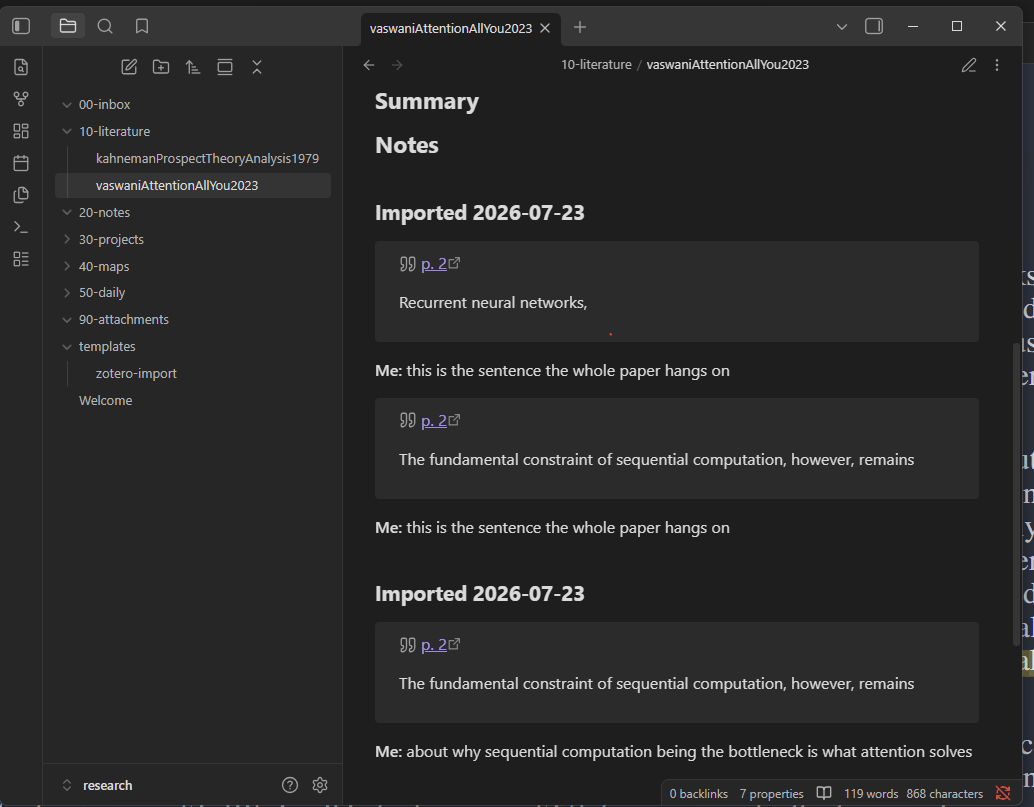
What the plugin produces in the vault structure described above: a note in 10-literature, named by citekey, with every PDF highlight deep-linked back to its page in Zotero.
Dataview — with an asterisk
Dataview turns your vault into a queryable database: “show me every literature note tagged #methods that I haven’t linked from any chapter” is a four-line query. For a literature review spanning a few hundred sources, this is the difference between a tracking spreadsheet and no spreadsheet.
The asterisk: Obsidian shipped Bases as a core feature in 2025 — native table views over note properties, no plugin required. Bases now covers the most common academic use case (a sortable, filterable table of your literature notes by year, status, and topic) with zero plugin risk. Start with Bases; add Dataview only when you hit something Bases can’t express, like inline queries embedded in prose. If you’re setting up in 2026, there’s a real chance you never need Dataview at all.
Templater
Automates note creation. One template for literature notes (frontmatter with citekey, year, status; headings for claim, method, limitations), one for daily notes, one for new project files. Set a folder-template mapping so any note created in 10-literature gets the right skeleton automatically. Templates are what make a system survive busy weeks — the structure appears without you deciding anything.
Skip these
Themes beyond picking one and stopping. Kanban plugins (your task manager is better at tasks). AI-chat plugins that promise to “talk to your notes” — retrieval over a personal vault is still unreliable enough that verifying its answers costs more than reading your own notes. Spaced-repetition plugins, unless flashcards are already part of your practice. The graph view, while built-in, is a screenshot generator, not a research tool; nobody navigates by it.
Maps of Content: your literature review, before you write it
A Map of Content (MOC) is just a note that curates links to other notes, with your commentary between them. For a literature review, create one MOC per theme in 40-maps — say, MOC attention and working memory.md — and structure it as an annotated argument:
## The capacity debate
Slot models: [[luck-1997-capacity-vwm]] vs. continuous-resource
accounts: [[bays-2008-precision]]. The disagreement is really
about [[what counts as an item in visual working memory]].

## Open question
Nobody in this list tests capacity under [[divided attention]] —
possible gap for ch. 2.
This is not busywork parallel to your literature review; it is the literature review in embryonic form. Each MOC section becomes a paragraph cluster in the written review, with citations already attached. The moment a MOC gets unwieldy, split it — that split usually reveals the section structure of the chapter.
Daily notes as a lab and reading journal
Turn on the core Daily Notes plugin (Settings → Core plugins) and point it at 50-daily. The daily note is your low-friction capture surface: what you ran, what broke, what you read, what the meeting decided. The habit that makes it valuable is linking — write “discussed [[reviewer 2 objection on sample size]] with advisor” and that conversation becomes findable from the note about the objection, forever, with a date attached.
For lab scientists this doubles as a searchable protocol journal (“when did we change the buffer concentration?” is a search, not an archaeology project). For everyone, it’s where fleeting reading thoughts land before being processed into real notes — a workflow covered in the broader researcher note-taking system.
Linking discipline: when to link, when not to
Links are the mechanism, but indiscriminate linking produces a vault where everything connects to everything, which carries the same information as nothing connecting to anything. Three rules:
- Link on use, not on mention. Link when the target note’s content bears on the current sentence — because you’re building the trail you’ll follow when writing. Don’t link every occurrence of a term.
- A link is a promissory note. Linking to
[[a note that doesn't exist yet]]is fine and useful — Obsidian shows these as unresolved links, which becomes a to-write list. But only make promises you’d want kept. - Write the sentence around the link. “See also: [[x]]” tells future-you nothing. “[[x]] contradicts this because the sample was self-selected” is a note that still works in eighteen months.
Tags, by contrast, are for status and type (#unread, #methods, #lit-note), not topics. Topics are what links are for.
Syncing: what it costs and what’s free
Your vault is a folder of text files, so you have options. Verified pricing as of July 2026:
- Obsidian Sync — $4/month billed annually, $5 billed monthly. End-to-end encrypted, version history, the only option that’s completely painless on iOS and Android. The app itself remains free for personal use, including academic work; the separate commercial license ($50/user/year) only applies to employer-required commercial use.
- iCloud Drive / OneDrive / Dropbox — free at the storage you already have. Put the vault in the synced folder. Works well on desktop; on mobile, iCloud is the only one of these that works cleanly with the iOS app, and sync conflicts under simultaneous editing are your problem to notice.
- Syncthing — free, open source, peer-to-peer, no cloud copy of your notes at all. The right answer if your notes include data covered by an ethics protocol that prohibits third-party cloud storage. Setup cost: a real hour of configuration.
- Git — free, gives you the best version history of any option, and doubles as backup. Best for the terminal-comfortable; clunky on mobile.
If your institution’s data policy allows it and you use a phone for reading notes, Sync at $4/month is the one paid Obsidian product that earns its price. Whatever you choose, it is sync, not backup — keep an independent backup of the vault folder.
My current setup, honestly: no sync at all — one desktop, with the vault folder covered by ordinary backups. That’s the right answer for exactly as long as reading happens at one machine and not a minute longer; the day phone-reading enters the workflow, Sync’s $4 is the first money this vault will spend. No conflict horror stories yet, which is what zero devices buys you.
Migrating from Notion or Word
From Notion: Settings → Export all workspace content → “Markdown & CSV.” Notion databases arrive as CSV plus loose pages; expect to spend an evening fixing internal links (Notion exports them with hash-suffixed filenames) and flattening the page hierarchy into the folder scheme above. Migrate actively-used notes properly and dump the rest into an archive/ folder inside the vault — searchable is good enough for material you may never touch. If you haven’t fully committed to the move yet, the Notion versus Obsidian trade-offs are worth settling before you export.
From Word: don’t convert your document archive wholesale. Pandoc (pandoc paper.docx -t markdown -o paper.md) handles individual files well, but old drafts belong in your file system, not your vault. Migrate the notes — the reading summaries, the idea documents — and start new literature notes in Obsidian from today forward. A vault’s value comes from links, and bulk-imported files arrive linkless; two months of natively-written notes will outperform ten years of imported ones.
The realistic adoption path: set up the six folders, install the three plugins, and process your next twenty papers through the system. If, after that, writing feels closer to assembly than to staring at a blank page, the system is working.