Researcher Knowledge Workflows
How to Annotate a Research Paper (A PDF Workflow That Feeds Your Notes)
The best way to annotate research papers is to mark them as if a stranger will be extracting your annotations into notes next week — because someone will: you, at processing time. Concretely, that means reading in Zotero’s built-in PDF reader, highlighting under a fixed color convention, and typing marginal comments as complete sentences, so that every mark lands in a database you can pull into your note system instead of dying inside a PDF file.
That’s the whole thesis. The rest of this article is why each piece is there, what the honest tradeoffs are against iPad apps, Adobe, e-ink, and paper, and what the current state of reading on a tablet actually is in mid-2026.
Most annotation is write-only
Picture the standard artifact: a PDF with thirty yellow highlights and no other marks. Every one of those highlights was a real cognitive event — something connected, something surprised you — and the mark records none of it. A highlight stores where; the why stays in working memory, which clears within days. Re-open that PDF in three weeks and you’ll find yourself genuinely puzzled by half your own markings, because the information you needed was never written down. The mark was an IOU to a future self who can’t redeem it.
This is what I mean by write-only annotation: marks that are produced and never read. It’s the default outcome, and not because researchers are lazy — it’s because the marks are (a) undifferentiated, so revisiting them means re-reading the paper, and (b) physically stranded in a file your note system can’t see. Fixing (a) is a technique problem; fixing (b) is a tooling problem. You need both fixes, and most advice on “how to annotate a research paper” — engage actively, write in the margins, summarize each section — only addresses the first, which is why people follow it diligently and still end up with a graveyard of marked-up PDFs feeding nothing.
Annotate for extraction
The organizing principle: every mark you make will be machine-extracted into a note document later, so make marks that will be worth reading when they arrive there stripped of the surrounding page.
This single assumption changes annotation behavior more than any technique list:
- You highlight less. An extracted note containing forty quotes is an annotation dump nobody processes. Knowing the highlights will be pulled out and stared at makes you ask, mid-read, “do I want to meet this sentence again?” — and the answer is usually no. Aim for the sentences that carry the paper: the claim, the key numbers, the definition you’ll reuse, the sentence you dispute.
- You highlight complete statements. A three-word highlight (“substantial improvements were”) is meaningless out of context. Extraction-aware highlighting grabs the full claim, because the claim is what arrives in your notes.
- You stop marking “interesting.” Interesting is not a retrieval category. Every mark gets a job — evidence, objection, citation to chase, quotable — or it doesn’t get made.
The downstream machinery that makes this pay off — pulling annotations into Obsidian with page-level links back to the PDF — is set up end-to-end in the Zotero-Obsidian workflow guide. But the principle governs even if your “extraction” is manual: annotate for the note you’ll write, not for the page you’re on.
Colors are a classification system, not decoration
Undifferentiated yellow is why highlights have to be re-read to be used. A fixed color convention makes each mark self-describing, and the one we use across this site (defined fully in the workflow guide) is: yellow for the paper’s claims and findings, red for problems and disputes, blue for citations to chase, green for definitions and anything to quote verbatim, purple for “connects to my project.”
Two things make a convention work. First, it must be fixed — decided once, never renegotiated mid-paper; the payoff is precisely that you stop thinking about it. Second, it must survive extraction: when the highlights land in your notes tagged by color, “every red highlight across my library” becomes a queryable object — a standing list of every methodological objection you’ve ever recorded. That query is impossible with yellow-everything, and it’s the difference between annotation as decoration and annotation as data entry.
Purple deserves its own sentence: it’s the highest-value color because it marks the only thing no re-reading can reconstruct — the connection to your work that fired while reading. Papers age; your project moves; the purple marks are the ones that were only visible from where you stood that day.
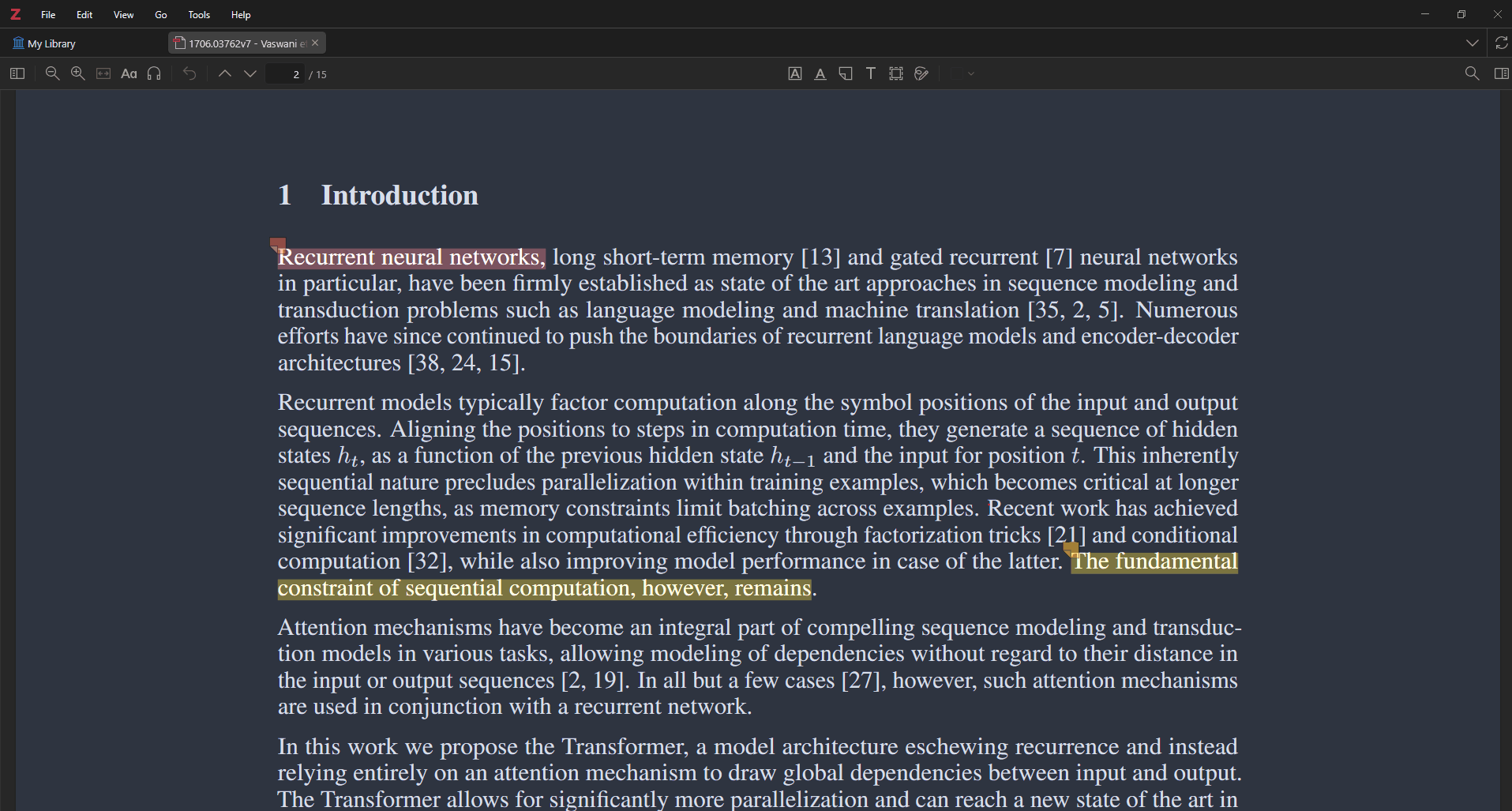
The convention in practice: red on the claim under dispute, yellow on the finding. Every mark in the sidebar is a database row — which is the property the whole workflow depends on.
Marginal comments are pre-written note sentences
Highlights capture the author’s words; comments capture yours, and yours are worth more. In Zotero’s reader, every highlight can carry a typed comment, and the discipline that repays itself most is writing those comments as full sentences addressed to your future self: not “hmm” or “important!!” but “this contradicts the 2023 replication — check which sample differs” or “this is the assumption my chapter 3 model relaxes.”
The reason to insist on full sentences is mechanical: when annotations are extracted, comments arrive as your own prose sitting under the quote they respond to — which means a well-commented paper arrives in your vault as a rough draft of its own literature note. The fifteen-minute processing session becomes editing rather than composition, because the thinking was serialized at reading time, when it was cheap, instead of reconstructed at writing time, when it’s expensive. If you adopt only one practice from this article, adopt this one; it converts reading time directly into writing time at better than par.
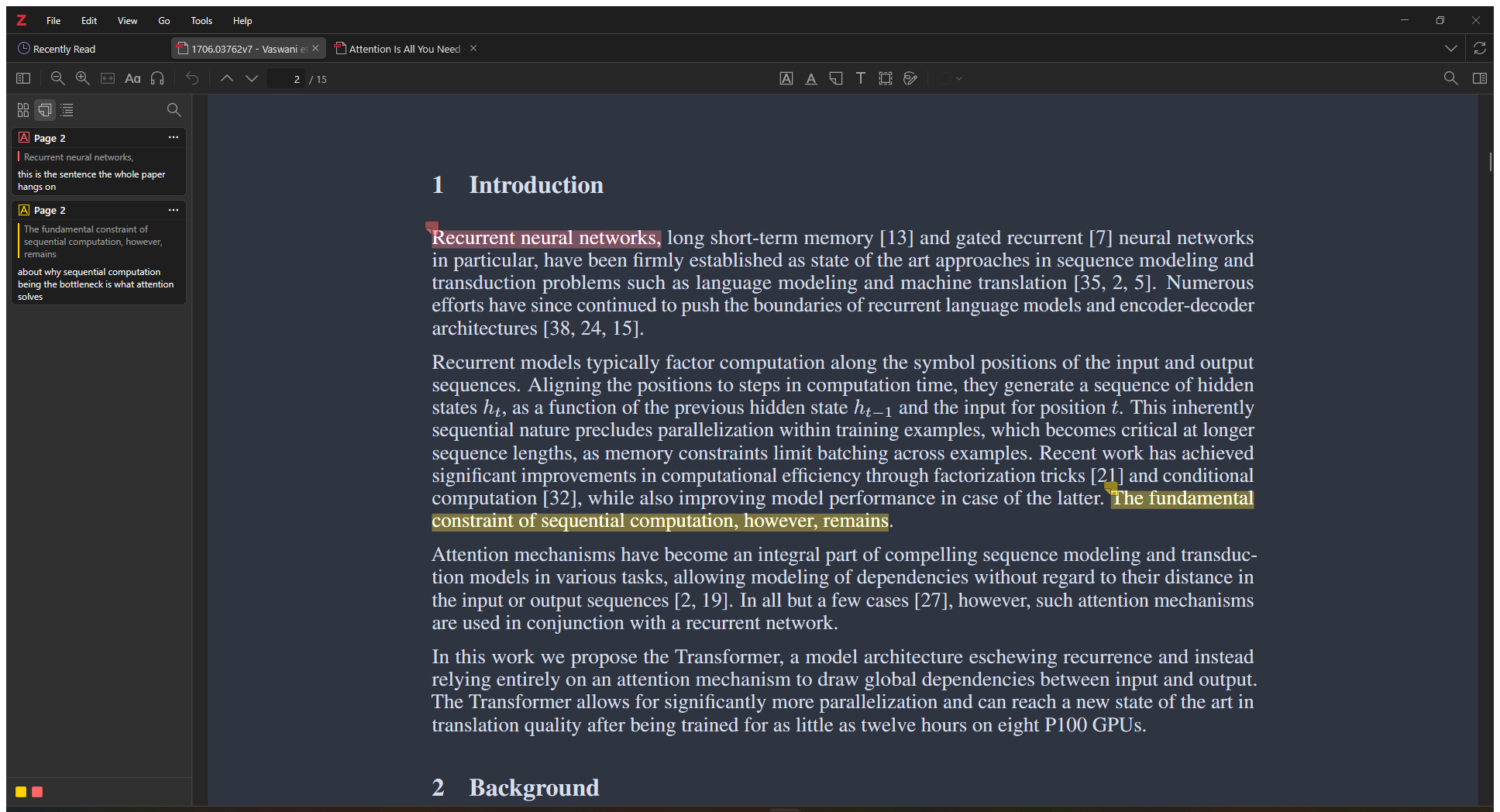
The discipline in practice: each sidebar card is a highlight plus the sentence written to a future self about it — “this is the sentence the whole paper hangs on” is already half a literature note.
Why Zotero’s reader is the default in 2026
The decisive property of Zotero’s built-in reader (standard since Zotero 6 in 2022, and better in every release since) is architectural, not cosmetic: annotations are stored as rows in Zotero’s database, attached to the item, not embedded in the PDF file. Database annotations can be listed in a sidebar, searched across your entire library, synced between devices, exported into Word documents with live citations, and — the point of everything above — programmatically extracted into your notes with links back to the exact page. Zotero will also import annotations from PDFs marked up elsewhere, so external marks aren’t lost, just second-class.
Against the alternatives, honestly:
- iPad annotation apps (GoodNotes, Notability, Flexcil, PDF Expert). Superior ink, page feel, and reading ergonomics — no contest there. But the marks either live in proprietary formats or in per-file PDF layers, outside any library-wide database, and the sync-back-to-your-reference-manager dance (export, re-import, deduplicate attachments) is exactly the kind of friction that gets skipped after week two. Every skipped sync is a paper whose annotations are stranded on a device. If you love one of these apps, the workable compromise is Zotero’s own mobile apps for library reading and the boutique app only for papers that need serious ink.
- Adobe Acrobat / other desktop readers. Marks are standard PDF annotations, so they’re recoverable — Zotero’s importer or the Obsidian plugin’s PDF utility can pull them — but they start stranded in the file, and nothing links them to your library’s metadata until you do the recovery step. You’re voluntarily adding a lossy hop for no benefit Acrobat provides over Zotero’s reader.
- Paper. Best comprehension per page of anything on this list, and a full dead end for extraction: every mark you want to keep must be retyped. Defensible for the handful of papers you read closest; indefensible as a default at literature-review scale.
The pattern: everything else optimizes the reading moment; Zotero’s reader optimizes the system — and this article’s whole argument is that annotation is a system input.
The extraction step
Brief, because it has its own guide: with the Zotero Integration plugin in Obsidian, one command imports a paper’s annotations into a templated note — each highlight as a quote block tagged with its color, each comment as your own marked prose, each page number a click-through link back to the exact spot in the PDF. Re-running the command after a second reading pass appends only what’s new. Setup is about an hour, documented end to end here, and the note it produces is the raw material for the literature-note and permanent-note practice described in the full note-taking system.
Tablets in 2026: a reality check
The historical objection to going all-in on Zotero — “but I read on my iPad” — has mostly expired. Zotero’s iOS app has been out since 2022; the Android app shipped in mid-2024 after a long beta; both are free, both sync your library, and both include the same annotation engine as the desktop reader — highlights, notes, and ink, in the same colors, landing in the same database. Read on the sofa with a tablet, and the marks are simply there on the desktop when you sit down to process. Rough edges remain: mobile ink is serviceable rather than delightful, large libraries want the “download files as needed” setting rather than full sync, and free Zotero storage (300 MB) fills quickly once PDFs sync to devices — the storage subscription or a WebDAV setup becomes the practical price of tablet reading. That’s the honest cost, and it buys the one property no iPad-app arrangement offers: zero-effort continuity between where you read and where you extract.
E-ink deserves one honest paragraph. Devices like the reMarkable and Supernote are the best pure reading-and-ink experience an academic can buy, and they are extraction dead ends: handwritten marks live in the vendor’s ecosystem, reach your computer as exported flattened PDFs or images, and never become database annotations — searchable, syncable, extractable — without manual retyping. Boox tablets are the partial exception because they run Android and therefore run the actual Zotero app, giving you database-native highlighting on an e-ink screen, with the caveats that e-ink refresh makes the experience slower than glass and typed comments are tedious without a keyboard. If eye strain drives you to e-ink, Boox-plus-Zotero is the configuration that keeps the workflow intact; a reMarkable is a lovely reading instrument that should be understood as paper with undo.
For the record, my own reading happens the unglamorous way: Zotero’s built-in reader on a Windows desktop, two highlight colors and typed comments, no tablet in the chain. It deviates from my own comfort recommendation — glass screens at a desk are nobody’s favorite reading experience — but every annotation lands in the database with zero export steps, and that trade has so far been worth it.
The workflow, end to end
Save the paper to Zotero from the browser. Read it in Zotero’s reader — laptop, iPad, or Android tablet, it genuinely no longer matters. Highlight sparingly under the five-color convention; type marginal comments as sentences your future self can use verbatim. Within 48 hours, extract to your notes and spend fifteen minutes turning the arrival into a real literature note. Every mark you made had a job; every mark got read twice — once when you made it, once when it became part of a note. That second reading is the entire difference between annotating and merely highlighting, and the workflow above exists to make it nearly free.