Researcher Knowledge Workflows
The Zotero + Obsidian Workflow: Full Setup Guide
The Zotero Obsidian workflow does one thing: it moves your PDF annotations out of your reference manager and into a linkable, searchable note — automatically, with page-level links back to the exact highlight in the PDF. The 2026 setup is Zotero 9 + Better BibTeX + the Zotero Integration plugin for Obsidian, and this guide walks the whole thing end to end, including a template you can paste in unchanged.
The division of labor is the reason the pairing works. Zotero is the library: it captures papers, holds the PDFs, manages metadata, and — since the built-in reader arrived — it’s also where you read and annotate. Obsidian is the thinking space: literature notes, your own claims, links between them, drafts. Neither tool is good at the other’s job. Zotero’s notes editor is fine for scraps but hopeless for a connected note system; Obsidian is a terrible reference manager. The bridge between them is a plugin, one keyboard command, and about four minutes of one-time template setup.
This guide covers the current plugin landscape (it has shifted; most tutorials you’ll find are describing 2022), the full setup, the daily loop, and the five failures that account for nearly every “it doesn’t work” forum thread. If you want the bigger picture of where this fits in a full research system, that’s our complete note-taking system for researchers.
Prerequisites and versions
As of July 2026, the stack is:
- Zotero 9 — current release 9.0.6 (July 2026). Free, zotero.org. Everything below assumes 9.x; it also works on 8.x. If you’re somehow still on Zotero 7, upgrade first — Better BibTeX dropped Zotero 7 support (8.0.25 was the last version that runs on it, frozen without updates).
- Better BibTeX (BBT) 8.x — the Zotero plugin that generates stable citation keys and exposes the local API the Obsidian side talks to. Free, retorque.re/zotero-better-bibtex.
- Obsidian — current release 1.13 (May 2026). Free for personal and academic use.
- Zotero Integration 3.2.x — the Obsidian community plugin doing the actual bridging.
Both apps installed on the same machine, and Zotero must be running whenever you import — the plugins talk over a local port (23119), not the cloud. Total cost: $0. Zotero storage subscriptions and Obsidian Sync are conveniences, not requirements for this workflow.
The plugin choice in 2026
Three routes exist, and the naming confusion between them has ruined many afternoons:
Zotero Integration (listed in Obsidian’s community store; repo now maintained under the obsidian-community GitHub organization after starting life as mgmeyers’ “Zotero Desktop Connector”) is the primary recommendation. It searches your Zotero library from inside Obsidian, inserts citations, and — the main event — imports annotations through fully customizable Nunjucks templates, with persist blocks that protect your own edits from being overwritten on re-import. It’s mature rather than fast-moving: the last tagged release is 3.2.1, but the community-org handover exists precisely to keep it working, and it remains compatible through Zotero 9 because it talks to Better BibTeX’s endpoints rather than Zotero internals. Requires BBT, which you want anyway.
ZotLit (aidenlx/PKM-er) is the actively-developed alternative — v1.1.12 shipped May 2026, and a v2 rewrite is in beta via BRAT. It runs its own companion plugin inside Zotero, reads the database directly, and can live-update notes when annotations change. It’s genuinely good, and if you want annotate-in-Zotero-see-it-in-Obsidian immediacy, it’s worth a look. It’s the secondary recommendation because the two-plugin architecture breaks in more interesting ways when either app updates, v2-in-beta means the docs describe two systems at once, and its template system is less battle-tested than Zotero Integration’s.
Better BibTeX auto-export + a citations plugin — BBT continuously exports your library to a .bib or CSL JSON file, and an Obsidian plugin (the old obsidian-citation-plugin) builds notes from it. This route only carries metadata, not annotations, and the citation plugin side is effectively unmaintained. Use auto-export for feeding Pandoc or LaTeX; don’t build your note workflow on it.
Recommendation: Zotero Integration, and everything below assumes it. The concepts (citekeys, templates, color conventions) transfer to ZotLit if you go that way.
Step-by-step setup
Step 1: Install Better BibTeX and set your citekey format (10 minutes)
- Download the latest
.xpifrom the Better BibTeX GitHub releases page (Firefox users: right-click → Save Link As, or the browser will try to install it itself). - In Zotero: Tools → Plugins → gear icon → Install Plugin From File, select the
.xpi, restart Zotero. - On restart BBT generates citation keys for your whole library. Let it finish.
- Go to Edit → Settings → Better BibTeX → Citation keys. The default formula (
auth.lower + shorttitle(3,3) + year) produces keys likesmithMeasuringThingsBadly2023. It works, but I’d set the formula field toauth.lower + yearfor keys likesmith2023— shorter filenames, easier to type in[[wikilinks]], and collisions are handled automatically with a suffix (smith2023a).
The citekey is the load-bearing identifier of this entire workflow: it becomes the Obsidian filename, the link target, and eventually your Pandoc/LaTeX cite key. Which is why you should immediately do the thing almost no tutorial mentions: pin your keys. Select all items (Ctrl/Cmd+A) → right-click → Better BibTeX → Pin citation key. Pinned keys are stored in the item itself and never change, even if you later edit the formula. Unpinned keys can regenerate — and silently orphan every note named after the old key.
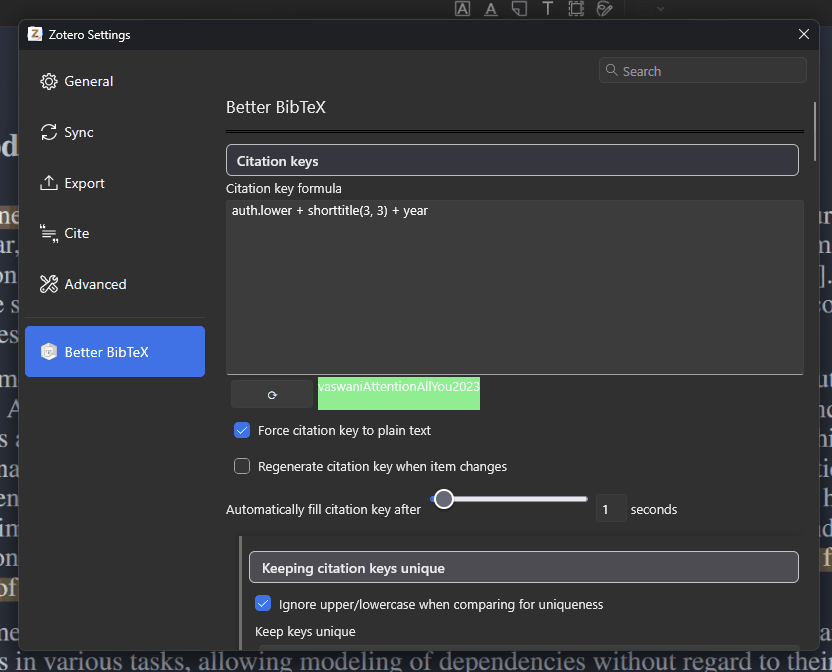
The BBT settings pane from the library used throughout this guide — the green preview under the formula field is your instant check that the citekey format works before you commit to it.
Step 2: Install Zotero Integration in Obsidian (5 minutes)
- Settings → Community plugins → Turn off Restricted mode → Browse, search “Zotero Integration”, install, enable.
- In the plugin’s settings, click the Install button next to PDF Utility. This downloads a small helper binary you’ll need for extracting annotations that live inside PDF files (anything annotated outside Zotero’s reader). Skipping this is troubleshooting item #4 below.
- Under Citation Formats, add one: name it
cite, format Formatted Citation, and pick a style (e.g. APA). This gives you a “Cite” command for dropping formatted references into any note. - Under Import Formats, add one: name it
Import literature note, set Output Path to10-literature/{{citekey}}.md(the.mdmatters — without it the plugin writes extensionless files that Obsidian’s sidebar won’t display, and the import looks like it silently failed), set Image Output Path to90-attachments(for imported figure/area annotations), and point Template File at the template you’re about to create.
The Import Format’s name becomes a command in Obsidian’s palette — that command is the workflow.
Step 3: The import template
Create templates/zotero-import.md in your vault and paste this. It’s Nunjucks, it works with Zotero Integration 3.2.x as written, and it survives re-imports without eating your edits:
---
title: "{{title | safe}}"
authors: {{authors}}
year: {{date | format("YYYY")}}
citekey: {{citekey}}
publication: "{{publicationTitle | safe}}"
zotero: "{{desktopURI}}"
tags: [literature-note]
---

> [!info] Reference
> {{bibliography | safe}}

## Summary
<!-- one paragraph, your words: claim, evidence, why it matters to you -->

## Notes

{% persist "annotations" %}
{% set newAnnots = annotations | filterby("date", "dateafter", lastImportDate) %}
{% if newAnnots.length > 0 %}
### Imported {{importDate | format("YYYY-MM-DD")}}

{% for a in newAnnots %}
{%- if a.annotatedText %}
> [!quote{% if a.colorCategory %}|{{a.colorCategory | lower}}{% endif %}] [p. {{a.pageLabel}}](zotero://open-pdf/library/items/{{a.attachment.itemKey}}?page={{a.page}}&annotation={{a.id}})
> {{a.annotatedText | safe}}
{% endif %}
{%- if a.imageRelativePath %}
![[{{a.imageRelativePath}}]]
{% endif %}
{%- if a.comment %}
**Me:** {{a.comment | safe}}
{% endif %}

{% endfor %}
{% endif %}
{% endpersist %}
What the non-obvious parts do: the {% persist %} block means re-importing a paper appends only new annotations (the filterby on lastImportDate) instead of regenerating the section — so your Summary, your inline thoughts, and your edits to old annotations are safe. Each highlight arrives as a callout whose p. N link is a zotero:// deep link: clicking it opens Zotero to that exact page and highlight. a.comment carries the annotation comments you typed in Zotero’s reader, prefixed **Me:** so your words stay visually distinct from the author’s.
Step 4: Annotation color conventions (2 minutes, once)
Zotero’s reader offers highlight colors (yellow, red, green, blue, purple, and more), and the template exposes each as colorCategory — which means colors can carry meaning into Obsidian. Pick a convention and stop thinking about it:
- Yellow — the paper’s claims and findings
- Red — problems: methods weaknesses, claims you dispute
- Blue — citations to chase
- Green — definitions, datasets, anything you’ll quote or reuse verbatim
- Purple — connects to my project (the most valuable color in the set)
If you want colors to render differently in Obsidian, the |{{a.colorCategory | lower}} in the template already emits per-color callout types (> [!quote|yellow]); a dozen lines of CSS snippet tints them, or ignore that entirely — the convention pays off even in monochrome, because a search for Me: inside red callouts is “every methodological objection I’ve ever recorded.”
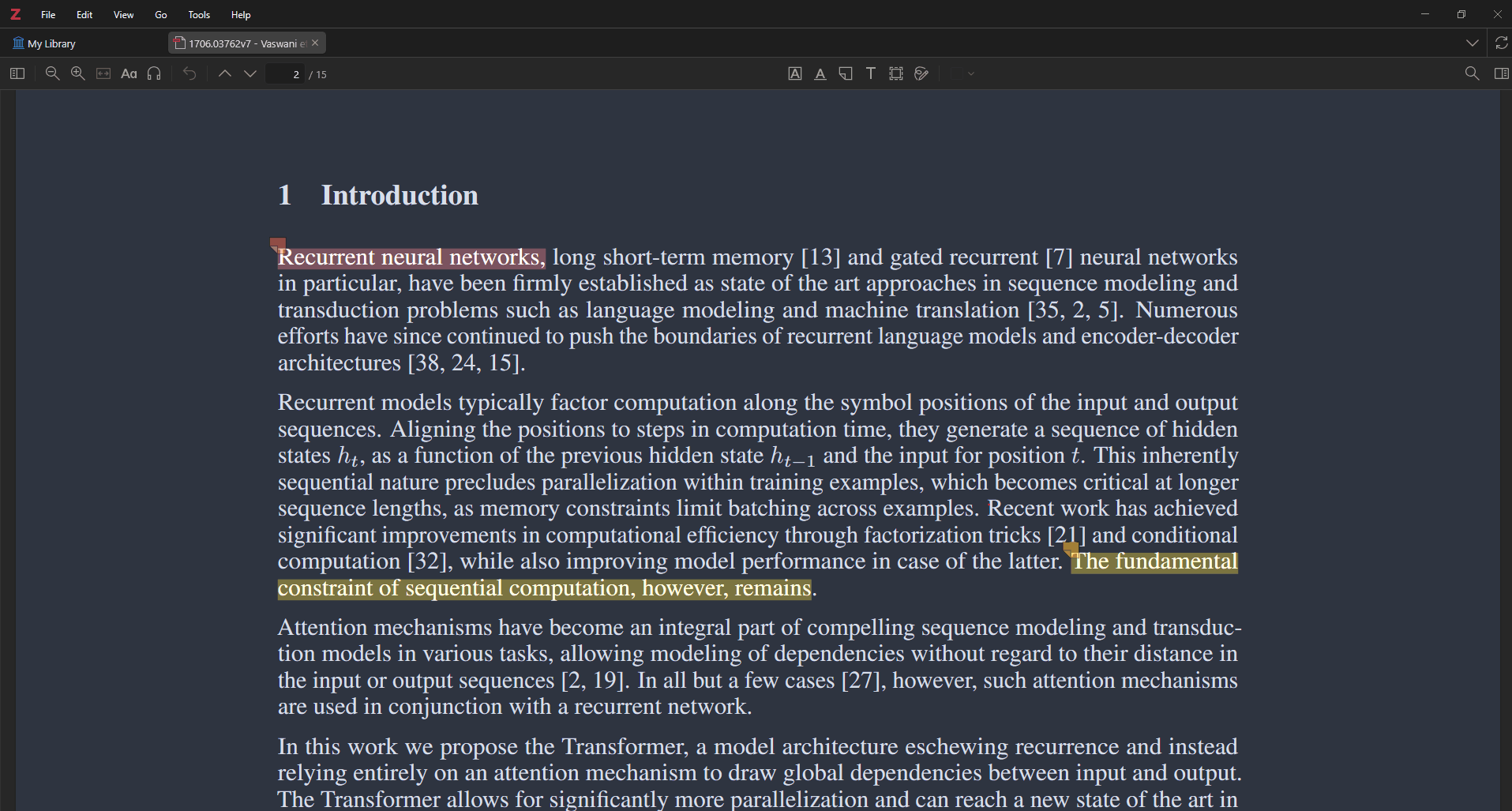
Two-color annotation in practice on Vaswani et al.: red marking the claim under scrutiny, yellow marking the constraint the whole paper exists to remove. These exact highlights reappear, colors intact, in the imported note below.
The daily loop
Once configured, the working rhythm is three steps, and only one of them is new effort:
- Read and annotate in Zotero. Save papers via the browser connector; read in the built-in reader; highlight by your color convention; type marginal thoughts as annotation comments (these matter more than the highlights — they’re literature-note sentences pre-written).
- Import to Obsidian. Open the command palette (Ctrl/Cmd+P) →
Import literature note→ type any part of the title or author → Enter. Sub-second, and the note lands in10-literature/named by citekey, annotations structured and deep-linked. Re-run the same command after a second reading pass;persisthandles the merge. - Write the literature note. Fill the Summary section in your own words, react to your highlights inline, and link outward:
[[smith2023]] extends [[jones2021]] but ignores [[measurement-validity]]. This step is the point; the plugin exists to make sure you spend your minutes here instead of on copy-paste.
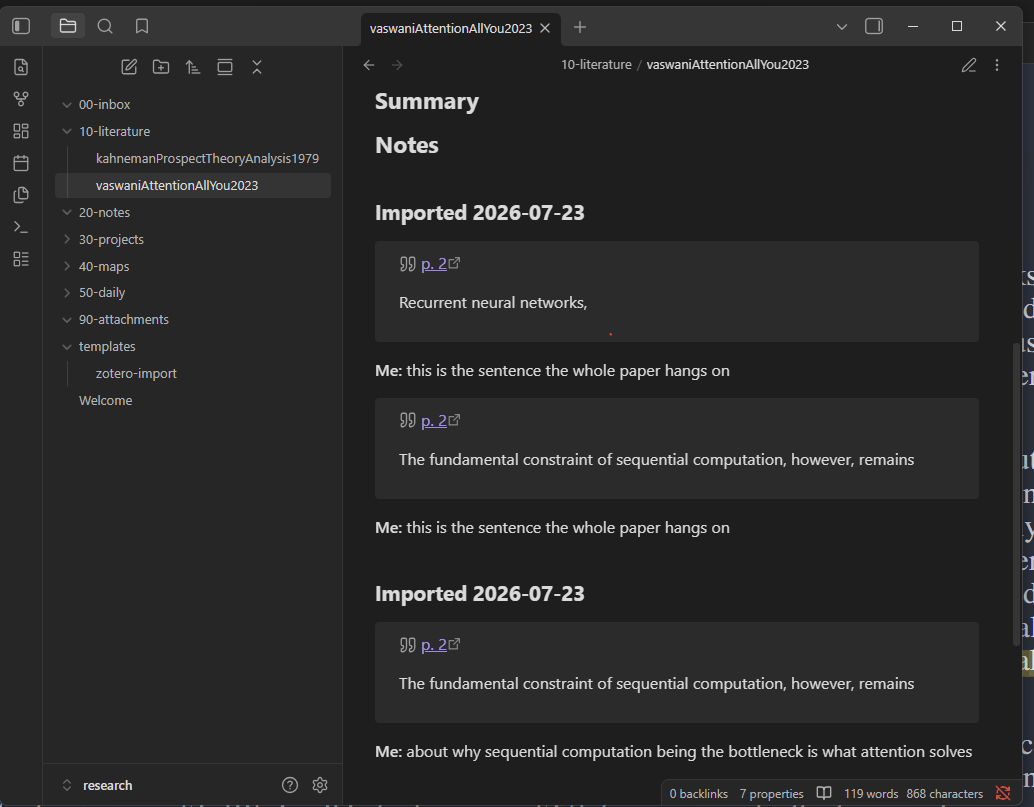
The result on a real vault: each highlight arrives as a callout whose page number deep-links back into Zotero, with annotation comments rendered as Me: lines. The second “Imported” block is a re-run of the command after adding a comment — the persist logic appended it without touching anything above.
Papers you merely skim skip step 3 — the imported annotations alone are a fine breadcrumb trail. What separates a real literature note from an annotation dump, and how this feeds a permanent-note practice, is covered in the full system article; vault structure and the surrounding plugin ecosystem are in our Obsidian for academic research guide.
Troubleshooting the five common failures
1. Import does nothing, or “Cannot connect to Zotero.” Zotero isn’t running, or BBT isn’t installed/enabled. The Obsidian plugin talks to Better BibTeX’s local endpoint on port 23119 — no Zotero process, no bridge. Also check Zotero’s Edit → Settings → Advanced → Allow other applications on this computer to communicate with Zotero is enabled (it is by default). Firewall software that blocks localhost connections produces the same symptom.
2. Citekey mismatches and orphaned notes. You changed the citekey formula (or BBT’s key-migration prompt after a major upgrade regenerated keys), and now smithMeasuringThings2023.md no longer matches the new smith2023 — so imports create duplicate files and old wikilinks dangle. Prevention is pinning keys (Step 1). Recovery: pin everything now, then batch-rename the stragglers; Obsidian updates backlinks on rename automatically.
3. Template errors on import. Nunjucks fails loudly (unexpected token) on syntax errors — usually a stray { or a Templater-style <% %> tag pasted from the wrong tutorial — and fails silently (blank output) on misspelled variables. The debugging tool almost nobody finds: run Zotero Integration: Data explorer from the command palette. It shows the exact JSON data for any item and previews your template against it live. Every template question answers itself in that panel.
4. Missing annotations. Four causes, in order of likelihood: the PDF was annotated in an external reader (Apple Preview, an iPad app), so the marks live in the PDF file, not Zotero’s database — install the plugin’s PDF Utility and re-import, which extracts them; you annotated a different copy of the attachment than the one Zotero considers primary; the annotations are in a group library while your import searched My Library; or you’re using filterby on lastImportDate (as in our template) and the annotations predate your last import — delete the note and re-import fresh to pull everything.
5. Re-import wiped my edits. The template lacked {% persist %} blocks, so re-importing regenerated the whole file. There’s no undo beyond your snapshots — which is the argument for running Obsidian’s File Recovery core plugin (on by default; Settings → File recovery) and keeping the vault under version control or backup. With the template above, only content outside the persist block is regenerated, and only frontmatter fields change on metadata updates.
A sixth failure, from setting up this exact workflow for this article: my first imports appeared to do nothing at all — command ran, search dialog found the paper, no error, no note. The import had actually succeeded every time. The output path in my format was missing the .md extension, so the plugin wrote extensionless files that Obsidian’s sidebar simply doesn’t display; the “failed” notes were sitting in the folder the whole time, invisible. If your import looks silent, check the folder in your system’s file explorer before assuming the plugin broke — and check your Output Path ends in .md.
When this workflow is overkill
Honesty clause: this setup earns its keep from roughly thirty sources upward, or on any project measured in years. Below that, the plumbing costs more than the copy-paste it saves.
Skip it if: you’re writing a one-off paper with fifteen references (Zotero + its Word/LibreOffice plugin is the whole workflow — and Zotero 9 can now insert annotations directly into Word documents with live citations attached, which covers the quote-with-citation use case with no Obsidian at all); your notes practice is genuinely Zotero-native (its notes editor plus the annotation sidebar is underrated for people who don’t want a linked vault); or you’d be adopting Obsidian only for this (an unused vault with perfect literature notes is still an unused vault).
And if your reading is split across Zotero PDFs, Kindle, and web articles, annotation transfer is a different problem than this plugin solves — that’s where our Zotero + Readwise sync guide picks up.
For everyone in the target zone — dissertation-scale reading, running lit reviews, multi-year research programs — this is, by a comfortable margin, the highest-leverage two hours of tooling setup available to an academic in 2026. The library stays canonical in Zotero, the thinking compounds in Obsidian, and the bridge between them is one command you’ll run a thousand times.